
Easy way to copy a SQL database with Microsoft SQL Server Management Studio (SSMS)
How to copy a database on the same SQL server
The scenario is pretty simple: We just want a copy of our database, with all the data and the complete scheme and permissions.
1. step: Make a back up of your source database
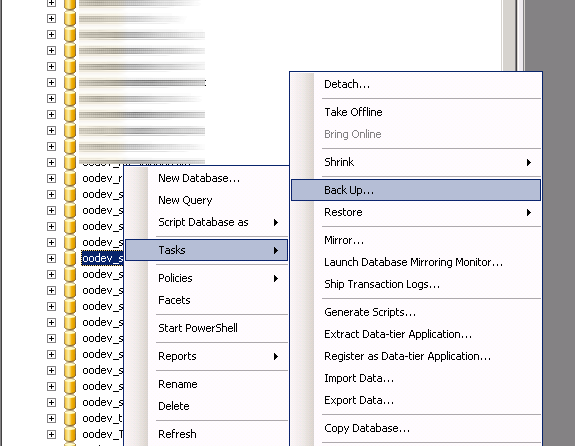
Click on the desired database and choose “Backup” under tasks.
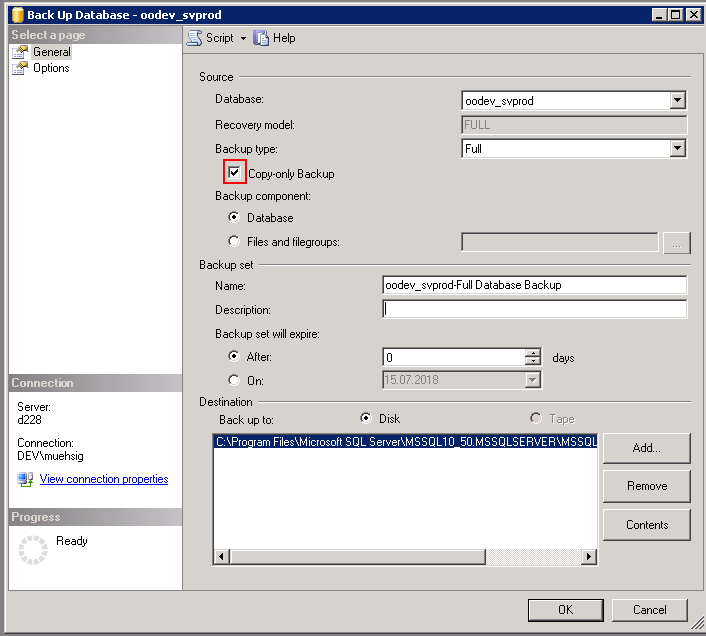
2. step: Use copy only or use a full backup
In the dialog you may choose “copy-only” backup. With this option the regular backup job will not be confused.
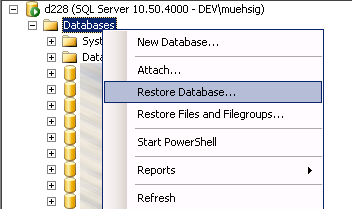
3. step: Use “Restore” to create a new database
This is the most important point here: To avoid fighting against database-file namings use the “restore” option. Don’t create a database manually - this is part of the restore operation.
4. step: Choose the copy-only backup and choose a new name
In this dialog you can name the “copy” database and choose the copy-only backup from the source database.
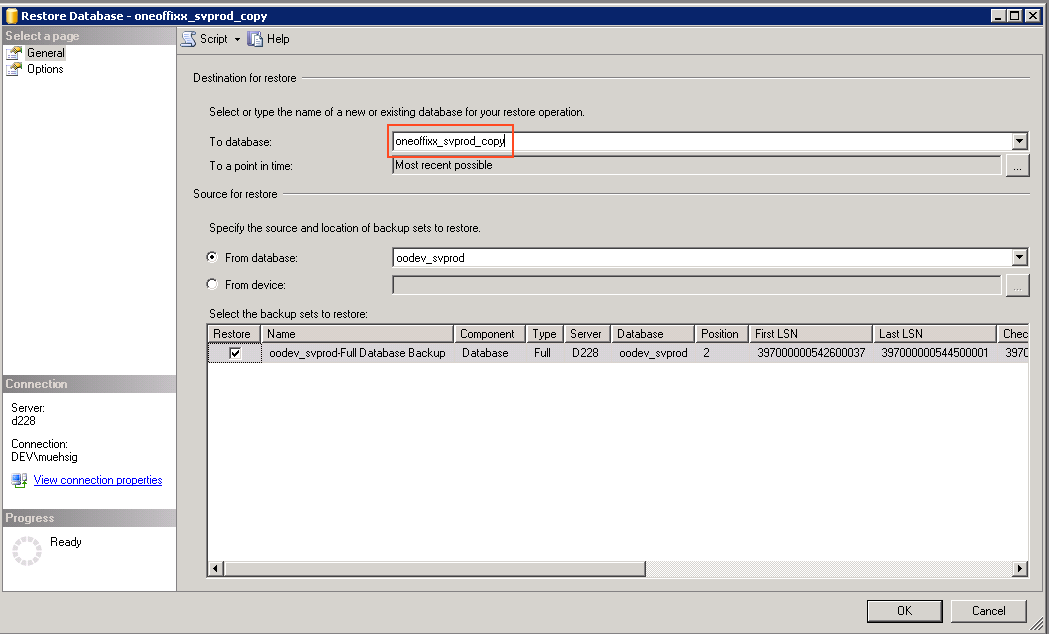
Now click ok and you are done!
Behind the scenes
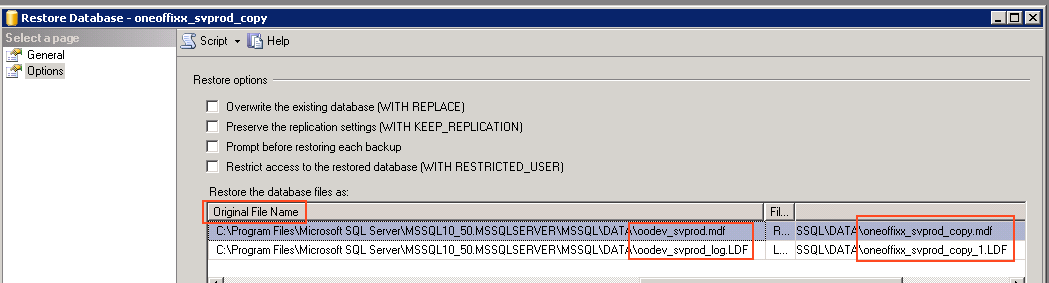
This restore operation works way better to copy a database then to overwrite an existing database, because the restore operation will adjust the filenames.
Further information
I’m not a DBA, but when I follow these steps I normally have nothing to worry about if I want a 1:1 copy of a database. This can also be scripted, but then you may need to worry about filenames.
This stackoverflow question is full of great answers!
Hope this helps!